
Get help with account access
Find your issue below to see what you can try yourself and when to contact your organization’s administrator.
I’m signed in, but my work is missing
You can check: Select the correct site using the site selector in the sidebar. Lists such as Assets and Repair orders show records for the selected site.
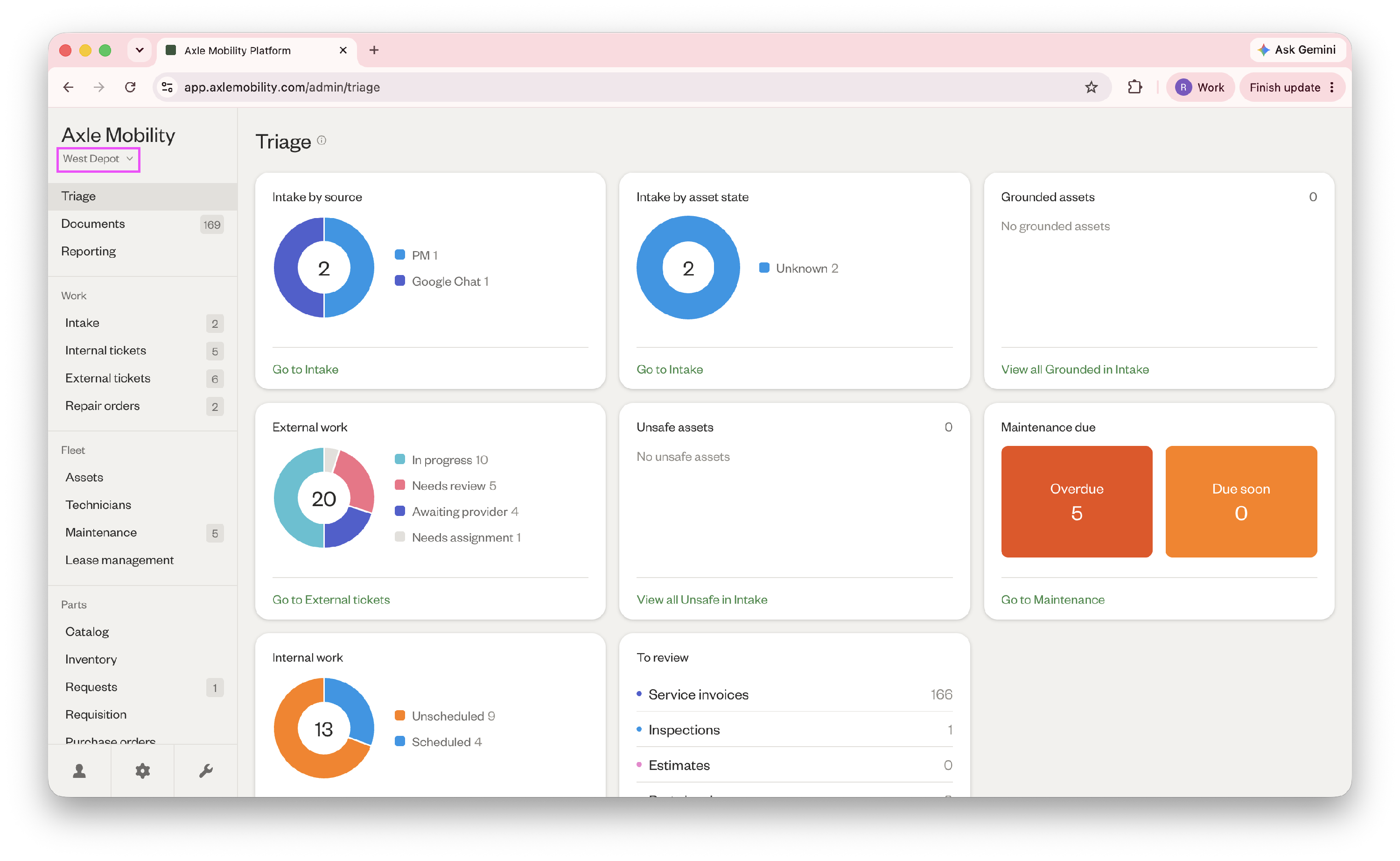
Your admin can help if:
- The site you need isn’t available.
- A page or menu item is missing.
- You’re taken to the wrong dashboard.
- You’ve signed in, but nothing loads.
These issues may require changes to your access or account setup.
I haven’t received my invitation
Search your inbox and spam folder for “Set Up Your Axle Account.”
If you can’t find it, ask your admin to check the email address on your account and help you get an invitation. Accounts are created by administrators—you don’t need to sign up separately.
My invitation link doesn’t work
Try signing in with an email magic link. It signs you in directly without a password.
- Go to the sign-in page and enter your email address, not your username.
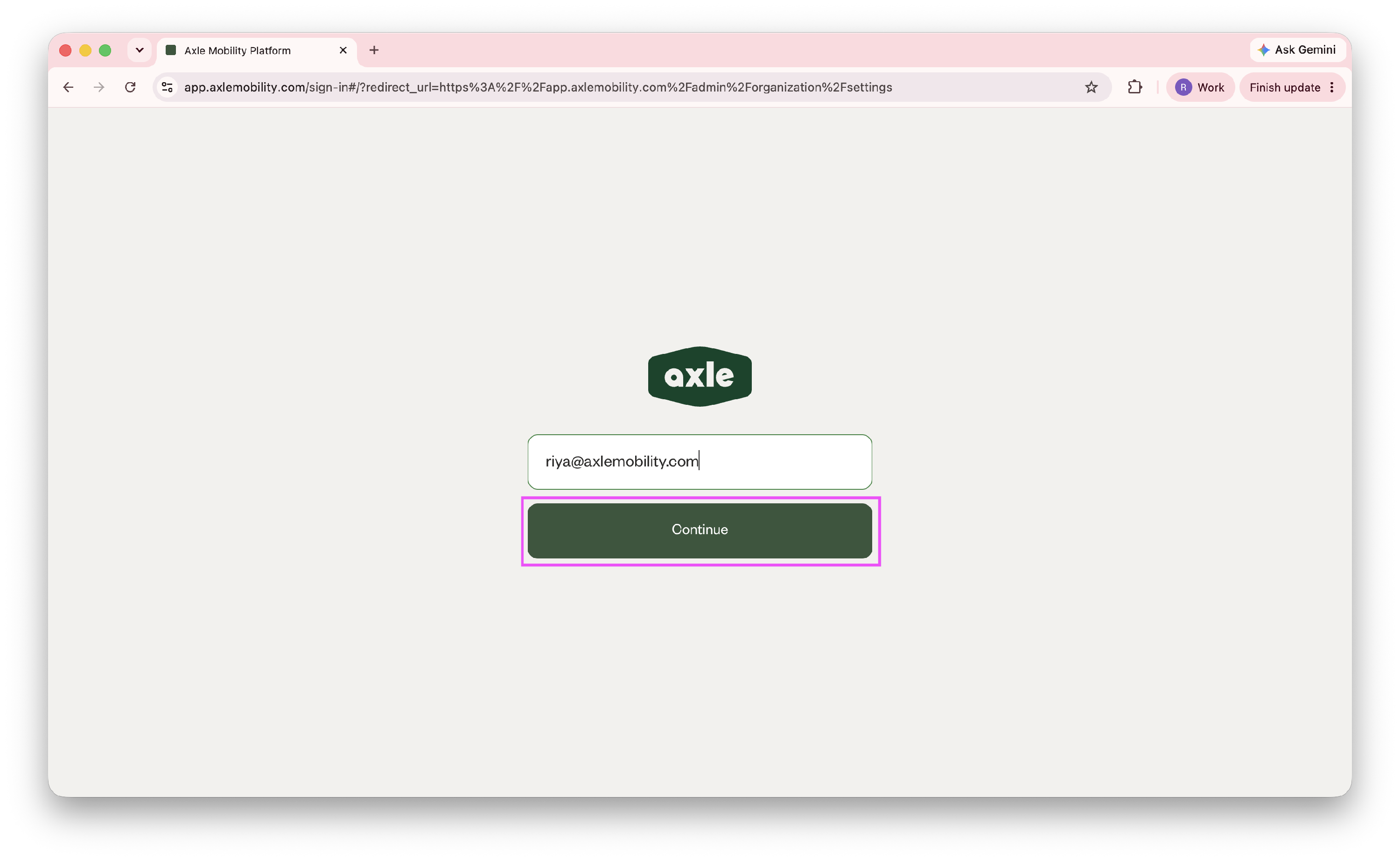
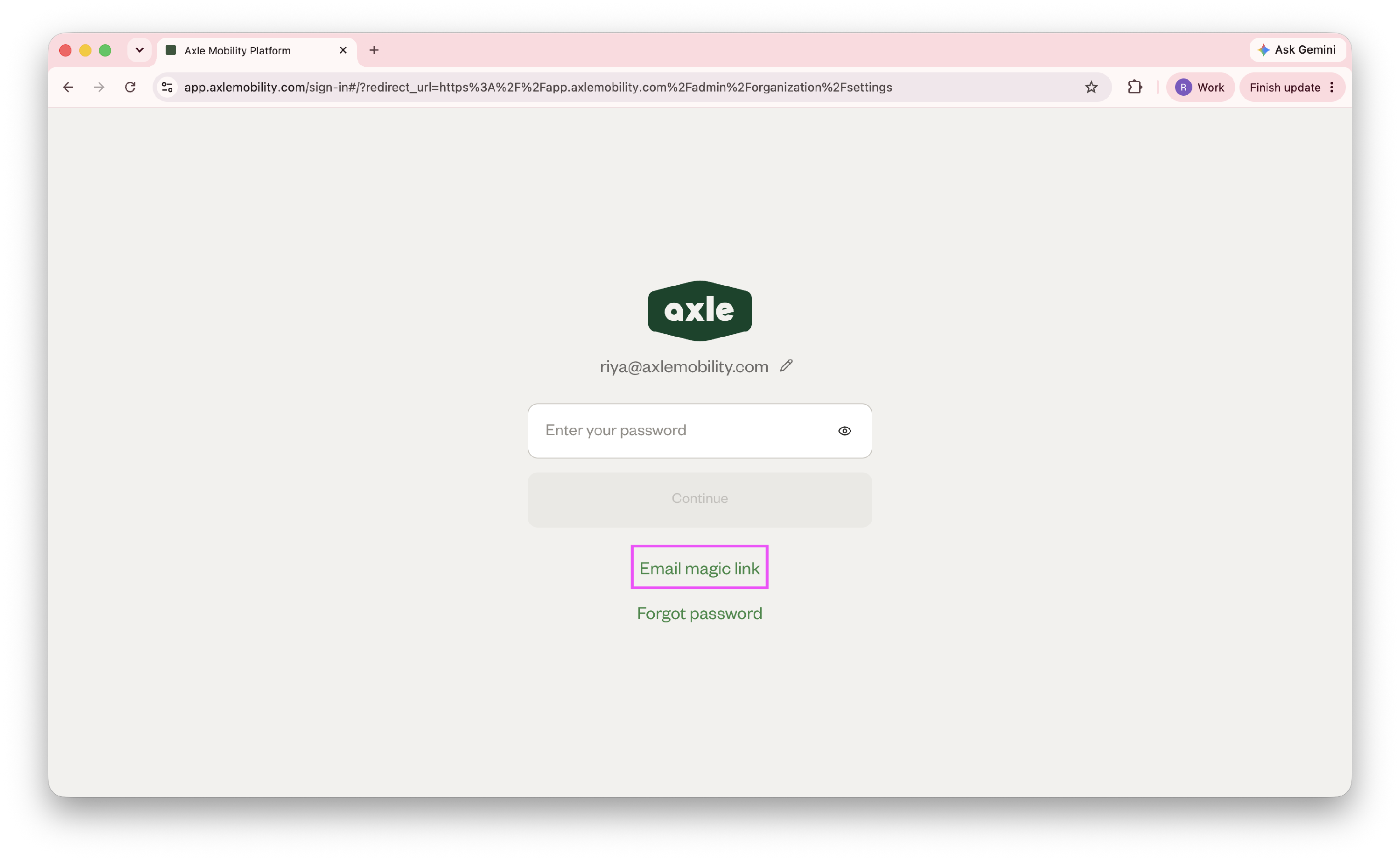
- Select Email magic link below Continue.
- When you see “Check your email and click the sign-in link to continue,” open the email and select the link.
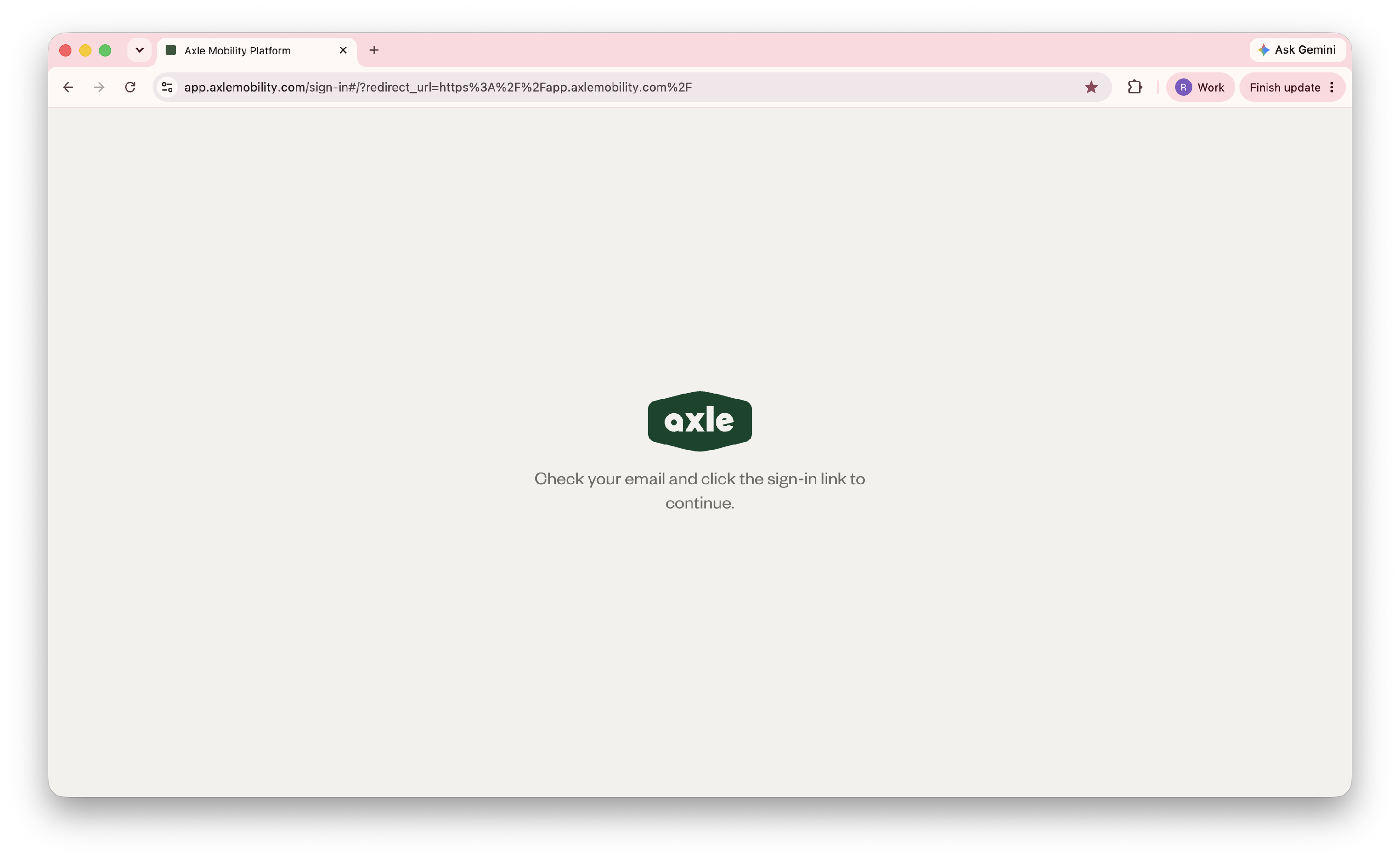
The option only appears after you enter a valid email address. If the email doesn’t arrive, check your spam folder, then reload the sign-in page to try again—the sign-in fields disappear after you request a link.
If you see “Email magic link is not available for this account,” contact your admin.
I can’t sign in or reset my password
| Message | What to do |
|---|---|
| “Incorrect password, try again” | Use Forgot password or Email magic link to reset it. |
| “Account not found” | Check your email address. If it’s correct, contact your admin. |
| “Sign in session expired. Please try again.” | Restart sign-in from the email field. |
| “Password reset is not available for this account” | Contact your admin. |
On your first sign-in, being asked to change your password is expected. Your new password must contain at least 8 characters, and both password fields must match.
Watch for error messages after submitting—they disappear after a few seconds.
I’m having trouble with a verification code
If you’re asked for a code:
- Check your inbox and spam folder.
- Select Resend if the code hasn’t arrived or you see “Incorrect verification code, try again.” Use the newest code.
- If you see “Failed to send verification code,” close the tab and start again. Contact your admin if it continues.
- If you see “Additional verification required,” contact your admin for help rather than retrying.
Still stuck?
When asking for help, include your sign-in email, the exact error message, the screen you were on, and roughly when the issue occurred. Never share your password or verification code.