Manage organization settings
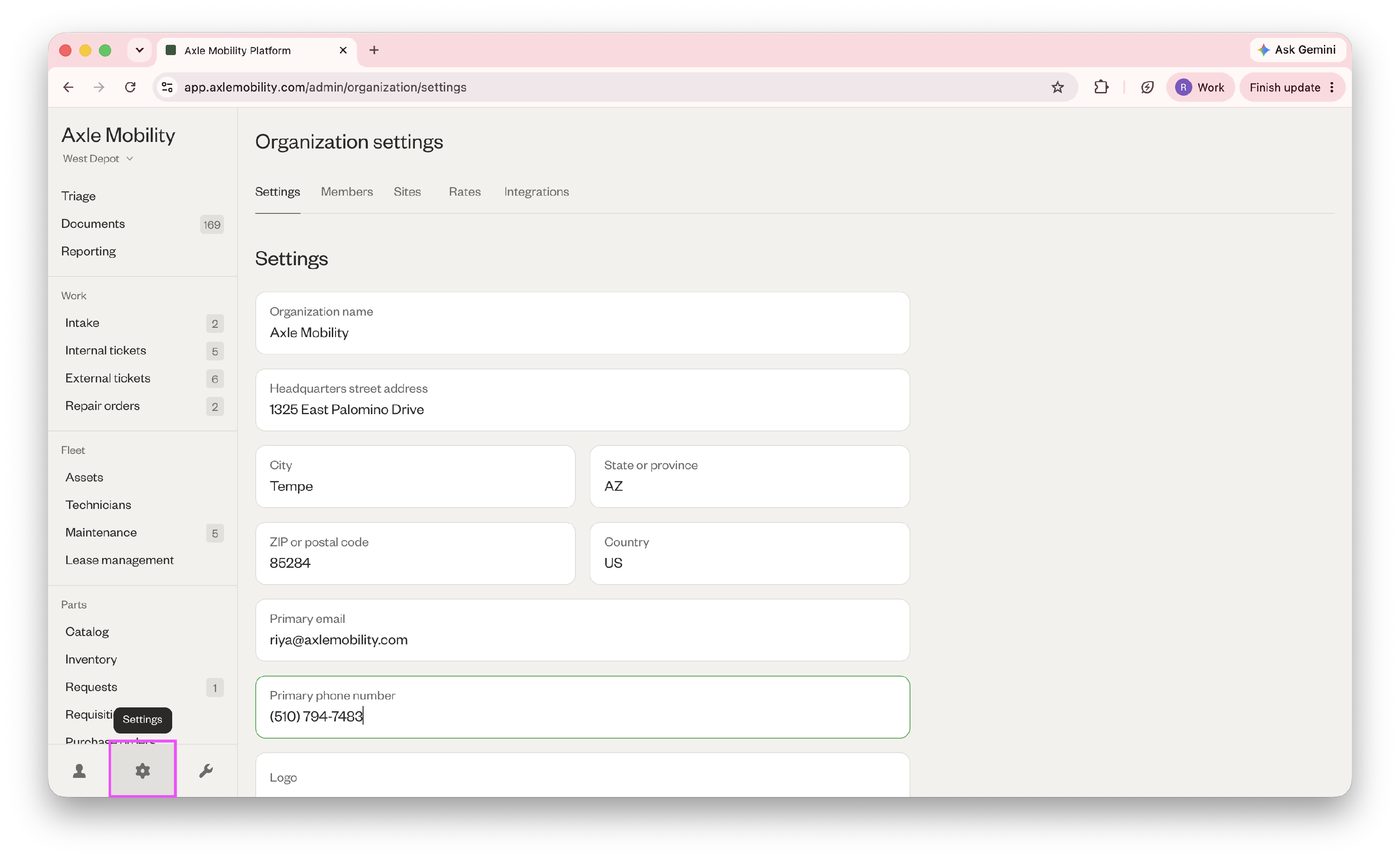
In Axle, you can manage your settings by clicking the gear icon in the sidebar.
When you make any changes to your settings, be sure to click "Save changes" at the bottom for it to take effect.
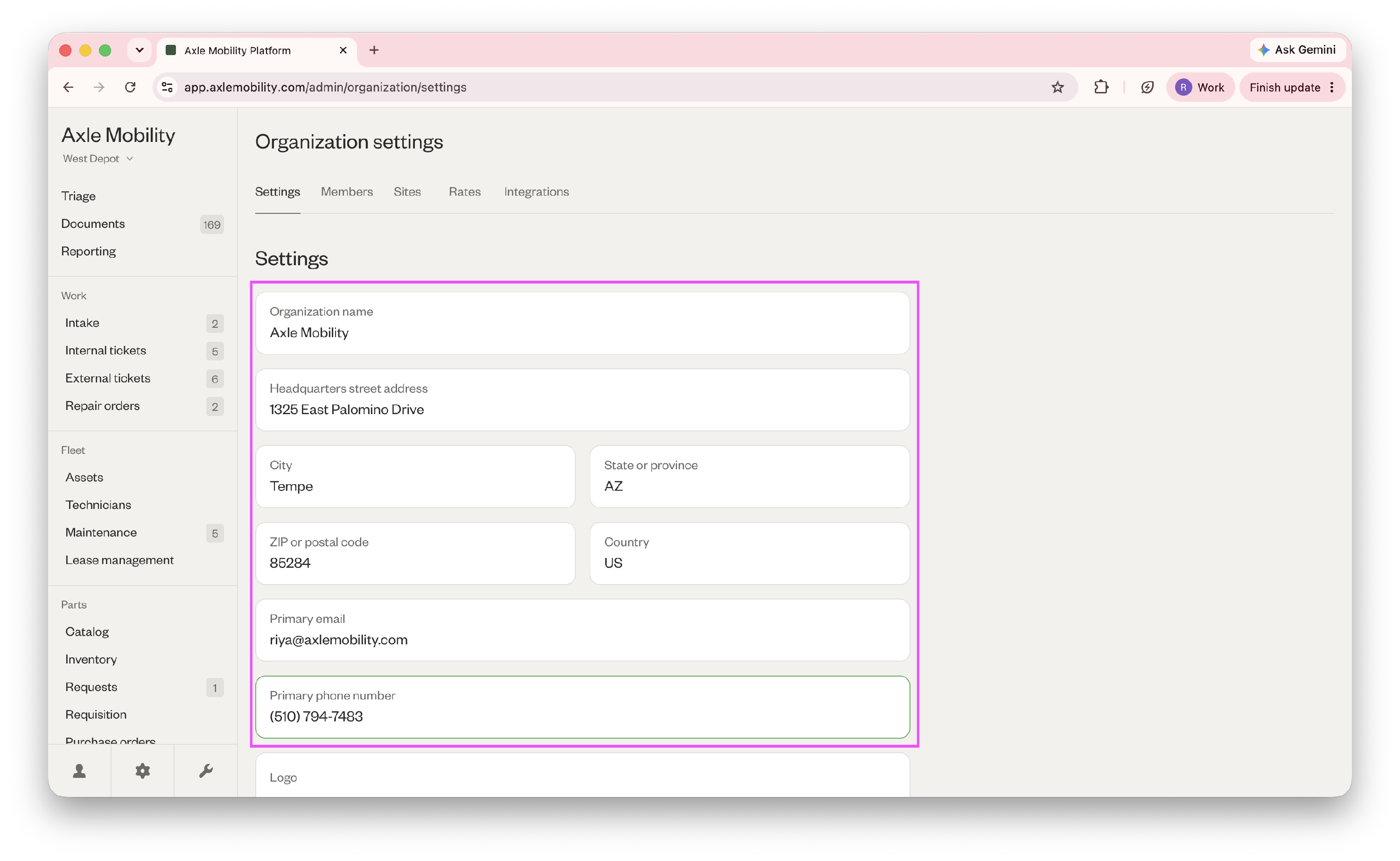
Add company headquarters info
Add or update your organization's headquarters information, such as street address, primary email, and primary phone number.
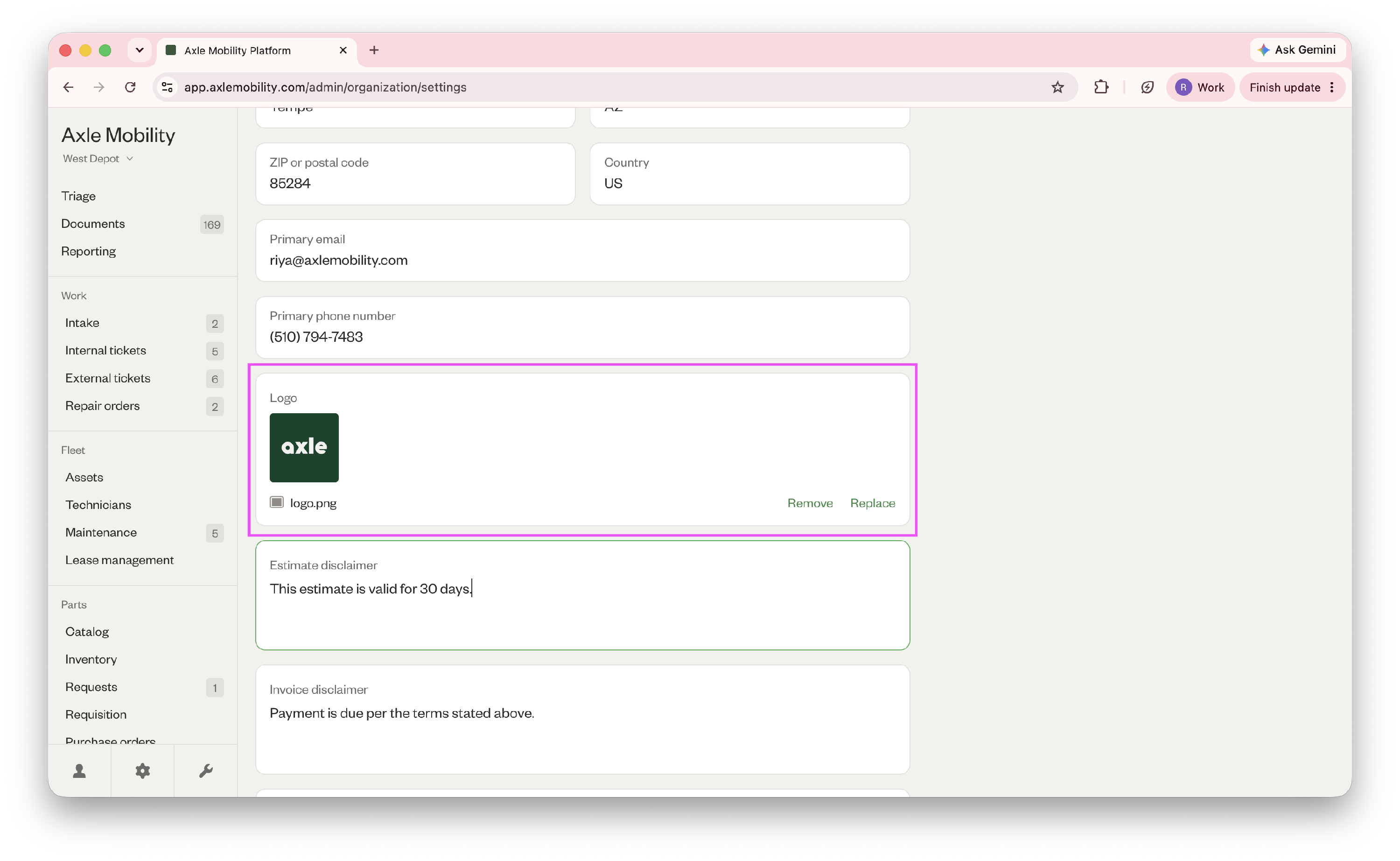
Add logo
Add or update your company logo to personalize Axle documents, such as estimates, invoices, and inspection reports.
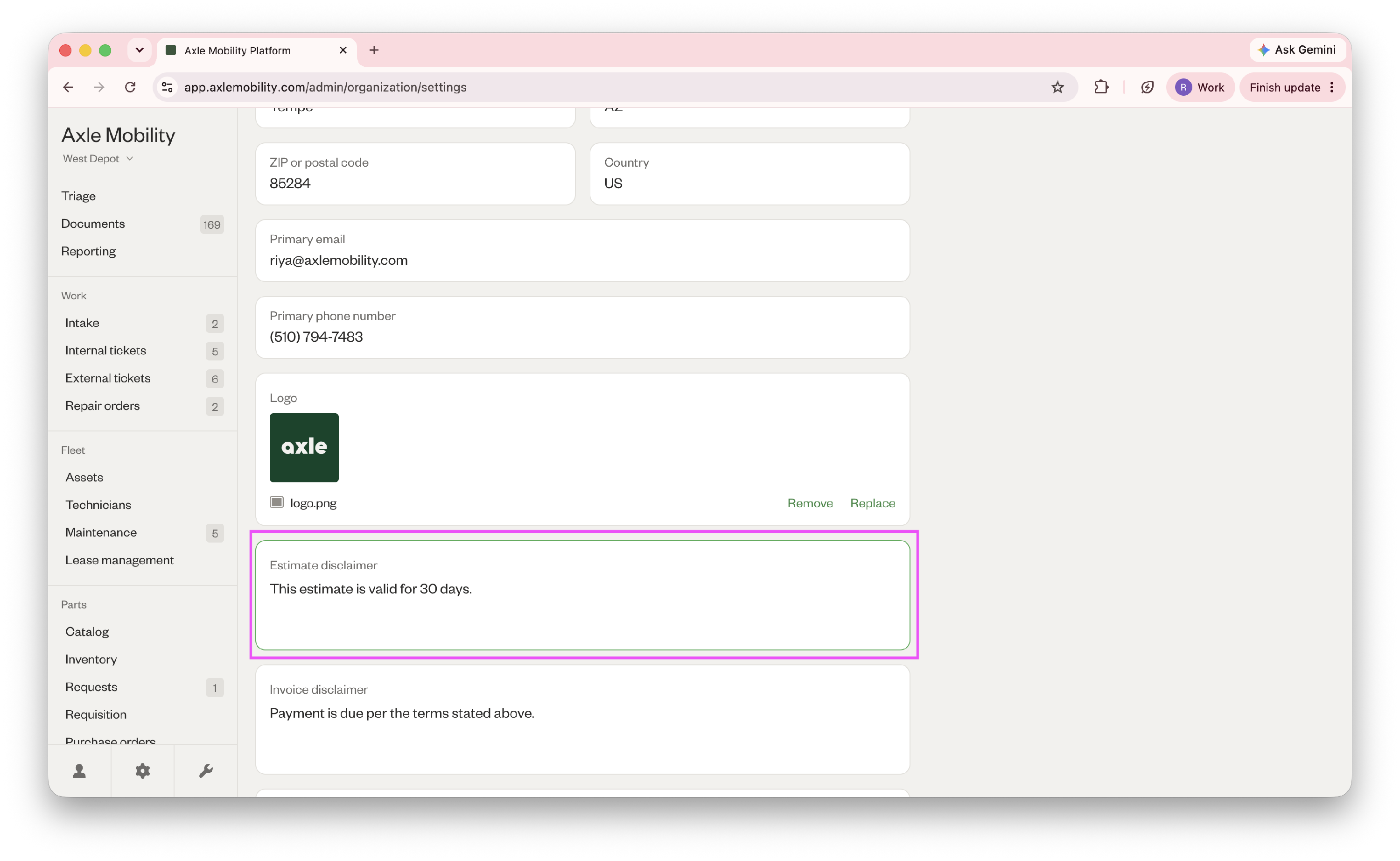
Add estimate disclaimer text
If you're a service provider, add or update a disclaimer message at the top of every estimate you send out.
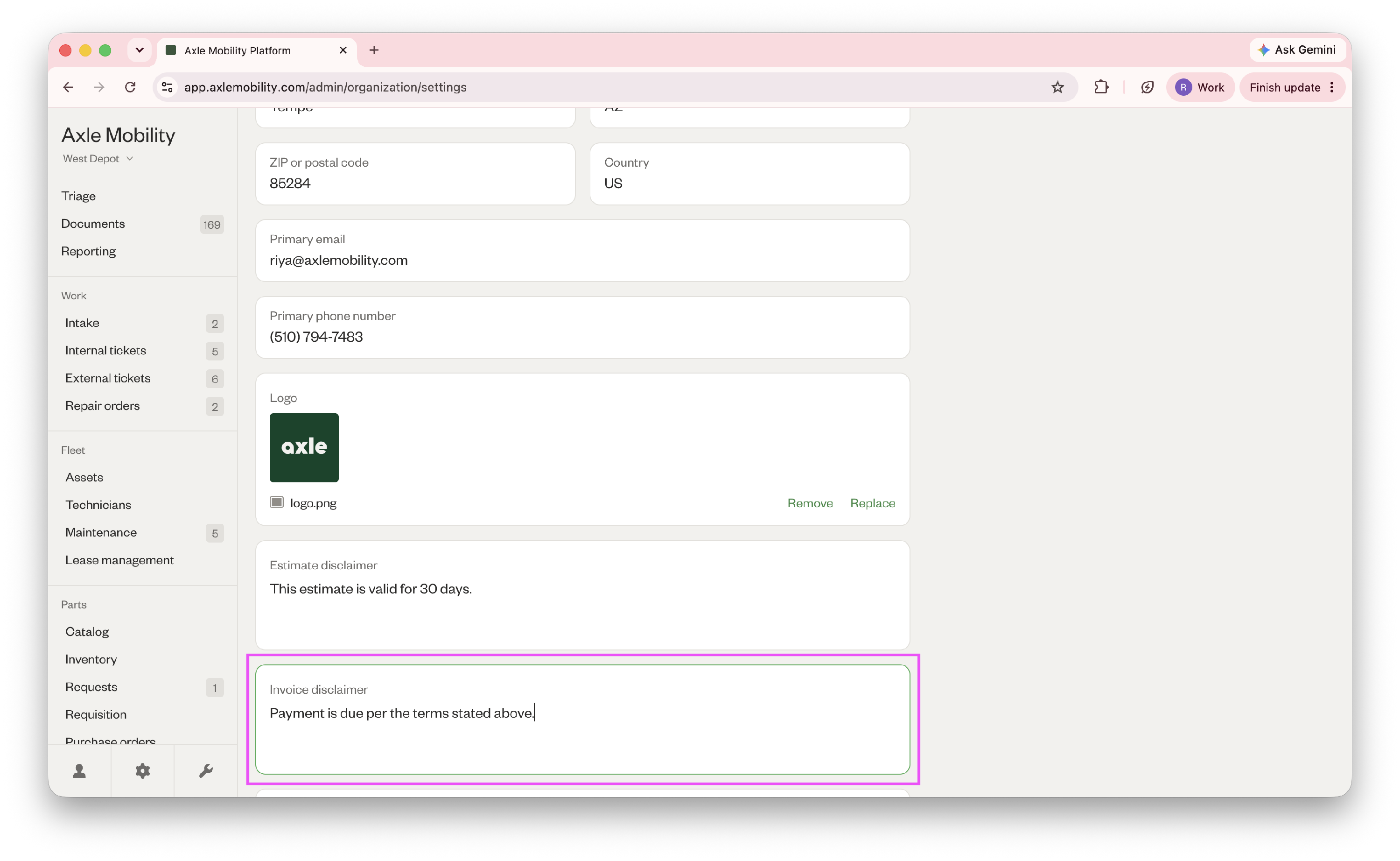
Add invoice disclaimer text
If you're a service provider, add or update a disclaimer message at the top of every estimate you send out.
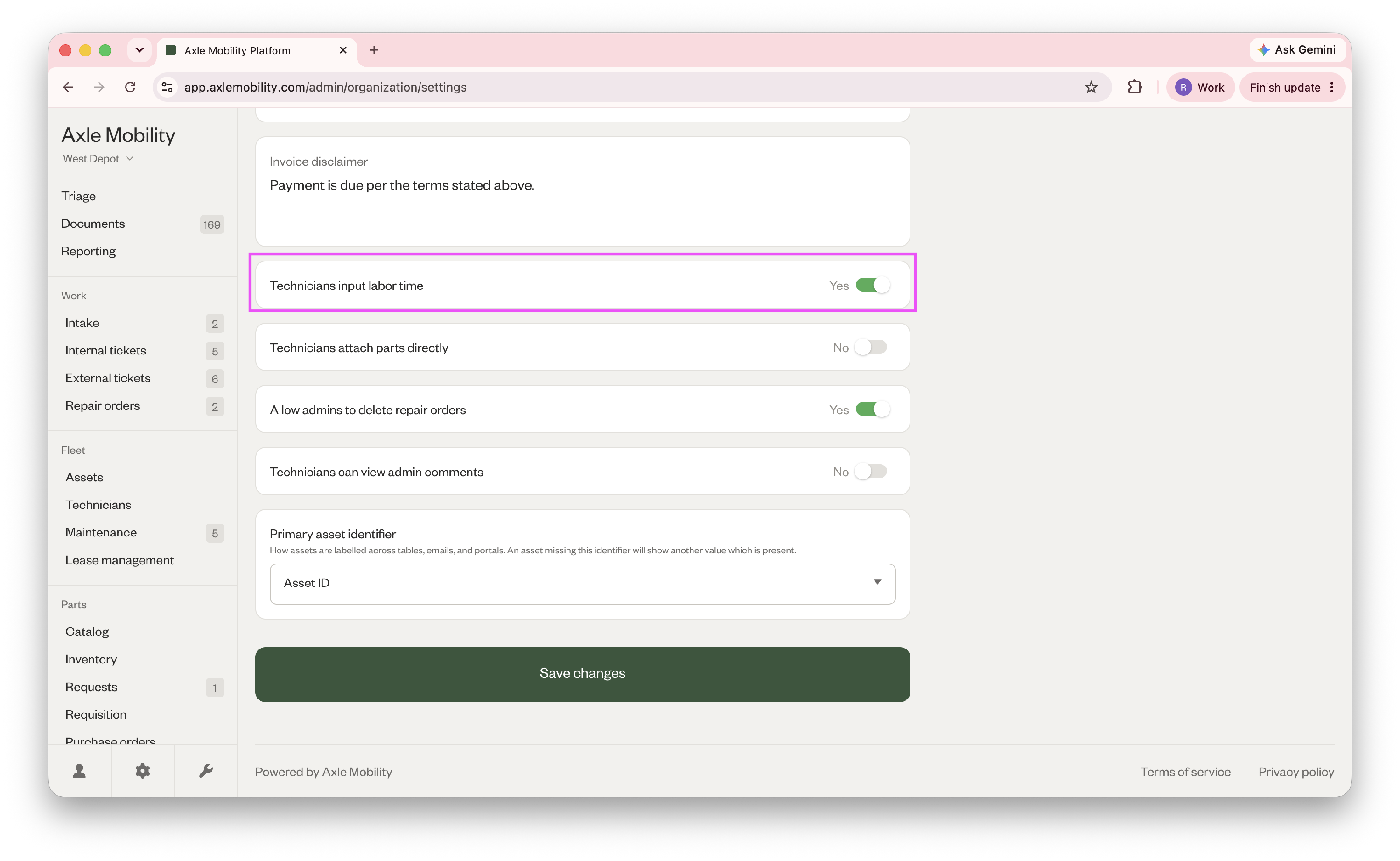
Allow techs to input labor time
Technicians can add time spent to their labor lines in repair orders.
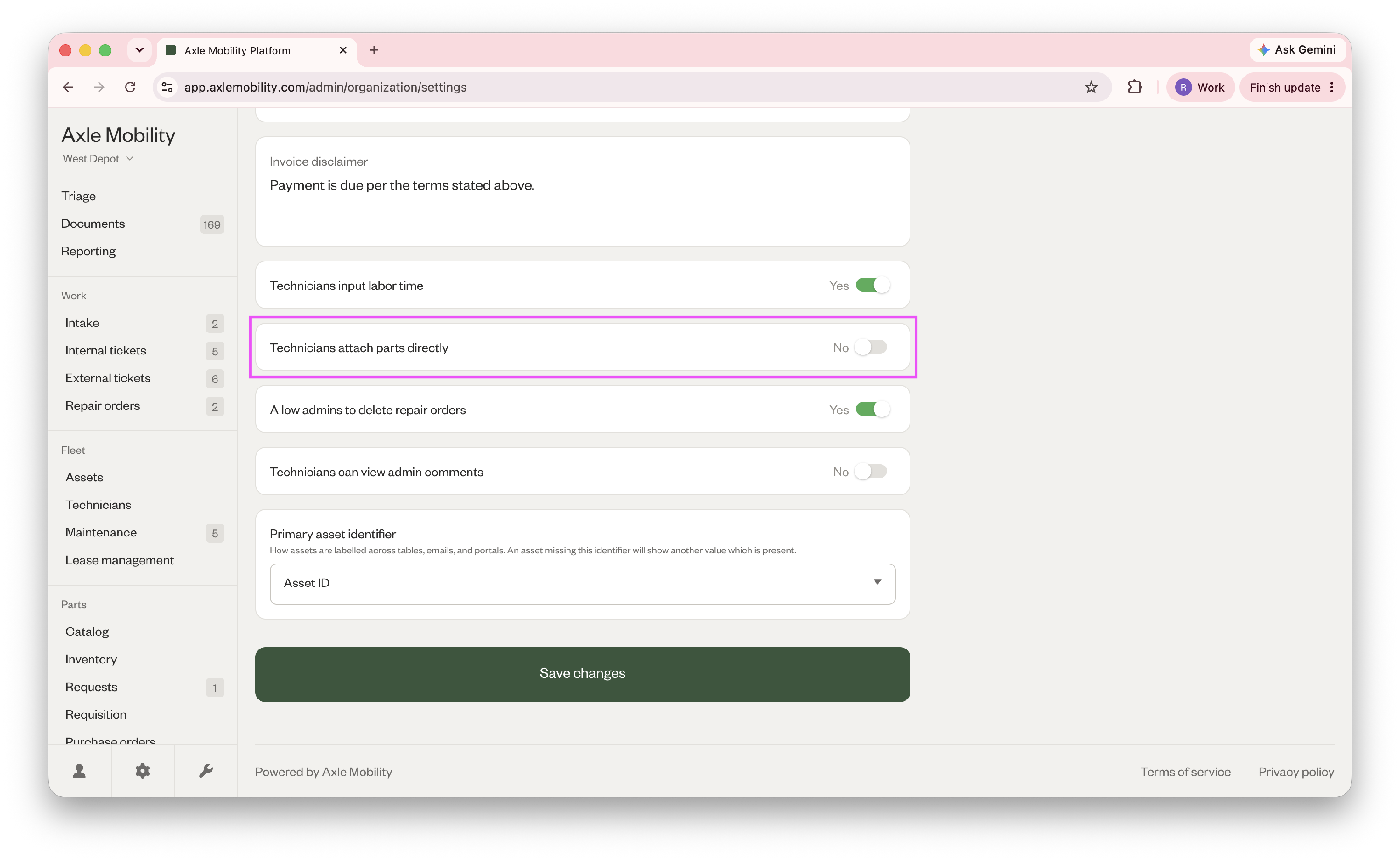
Allow techs to add parts directly to repair orders
Technicians can attach parts directly to their repair orders, without requesting admin approval.
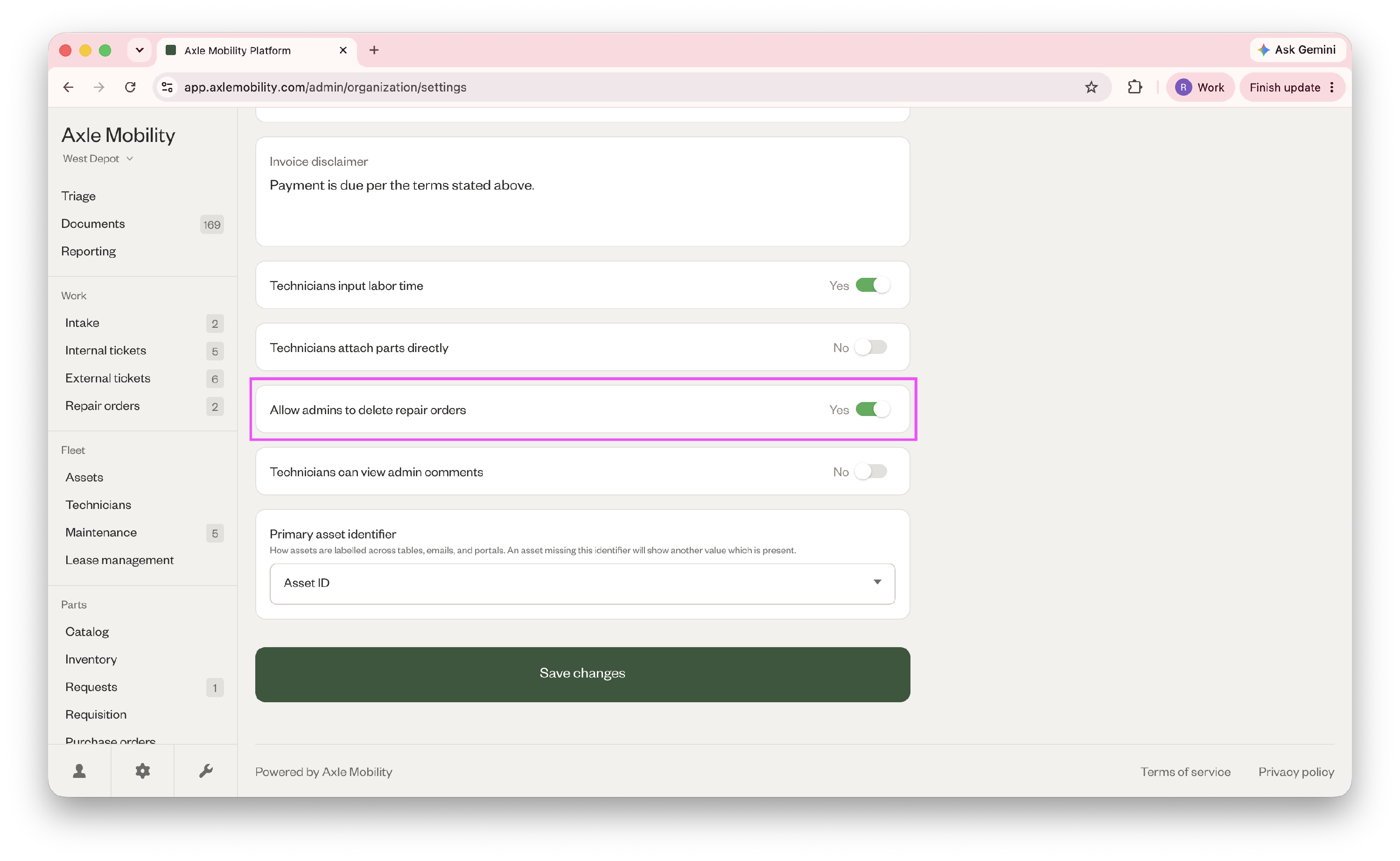
Allow admins to delete repair orders
Admins can delete repair orders from Axle.
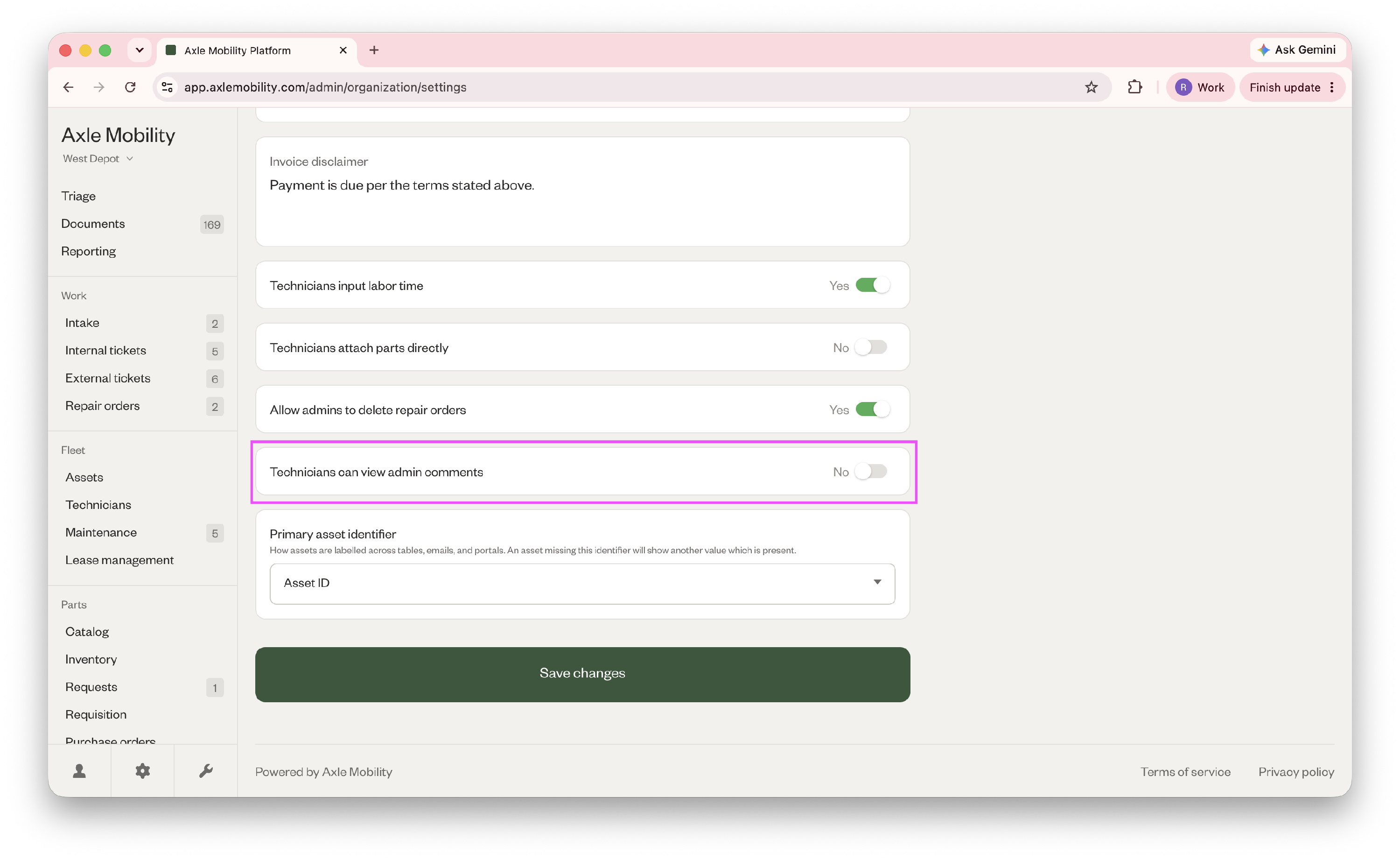
Allow technicians to view admin comments
Other than work order comments, technicians can also view comments on admin entities like customers, assets, and service providers.
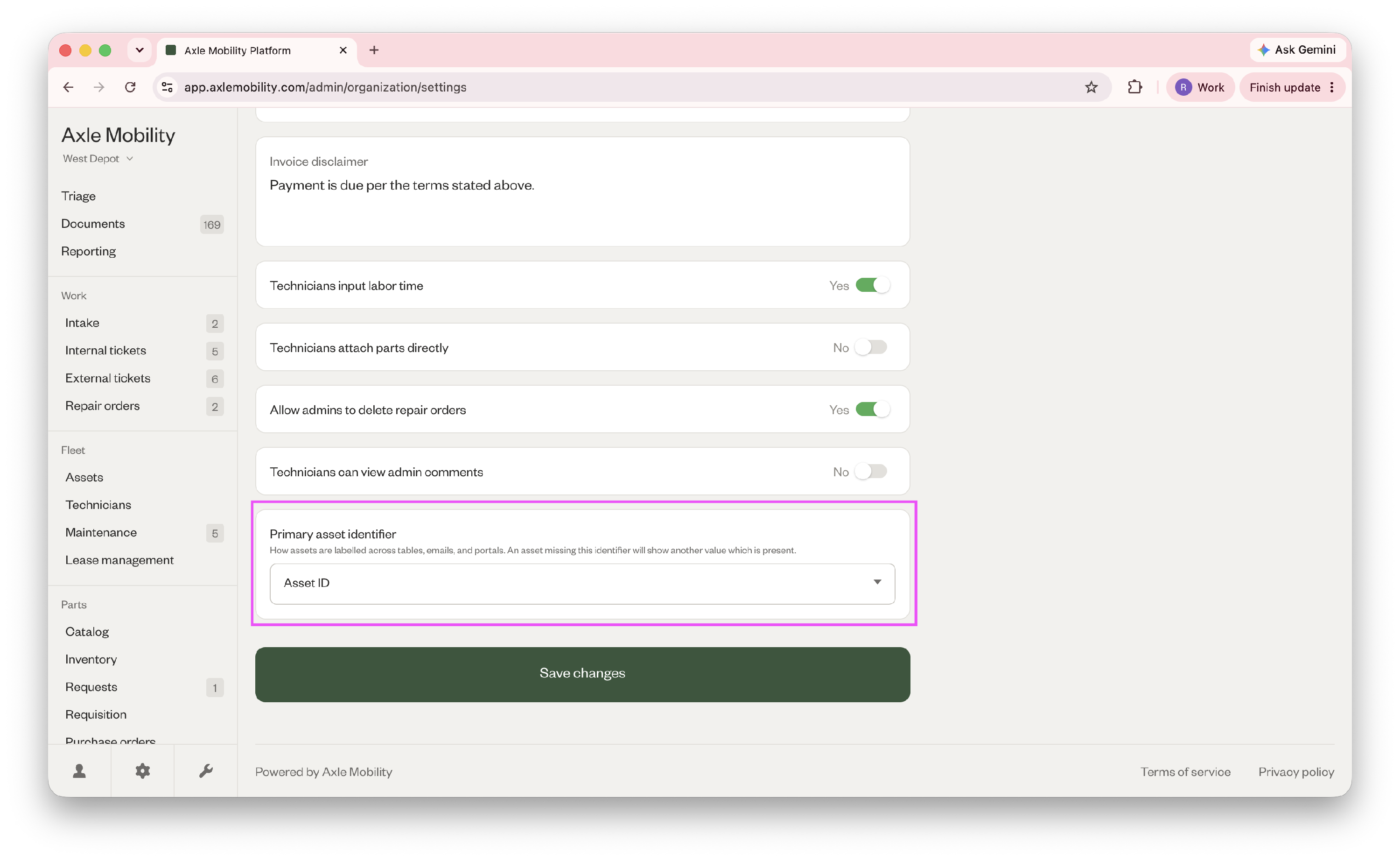
Choose primary asset identifier
Choose your primary identifier for assets in Axle — VIN, asset ID, or license plate. This is how assets will show across all modules.