Review a parts request
Use Parts requests to approve, order, or deny parts requested by technicians.
Review a request
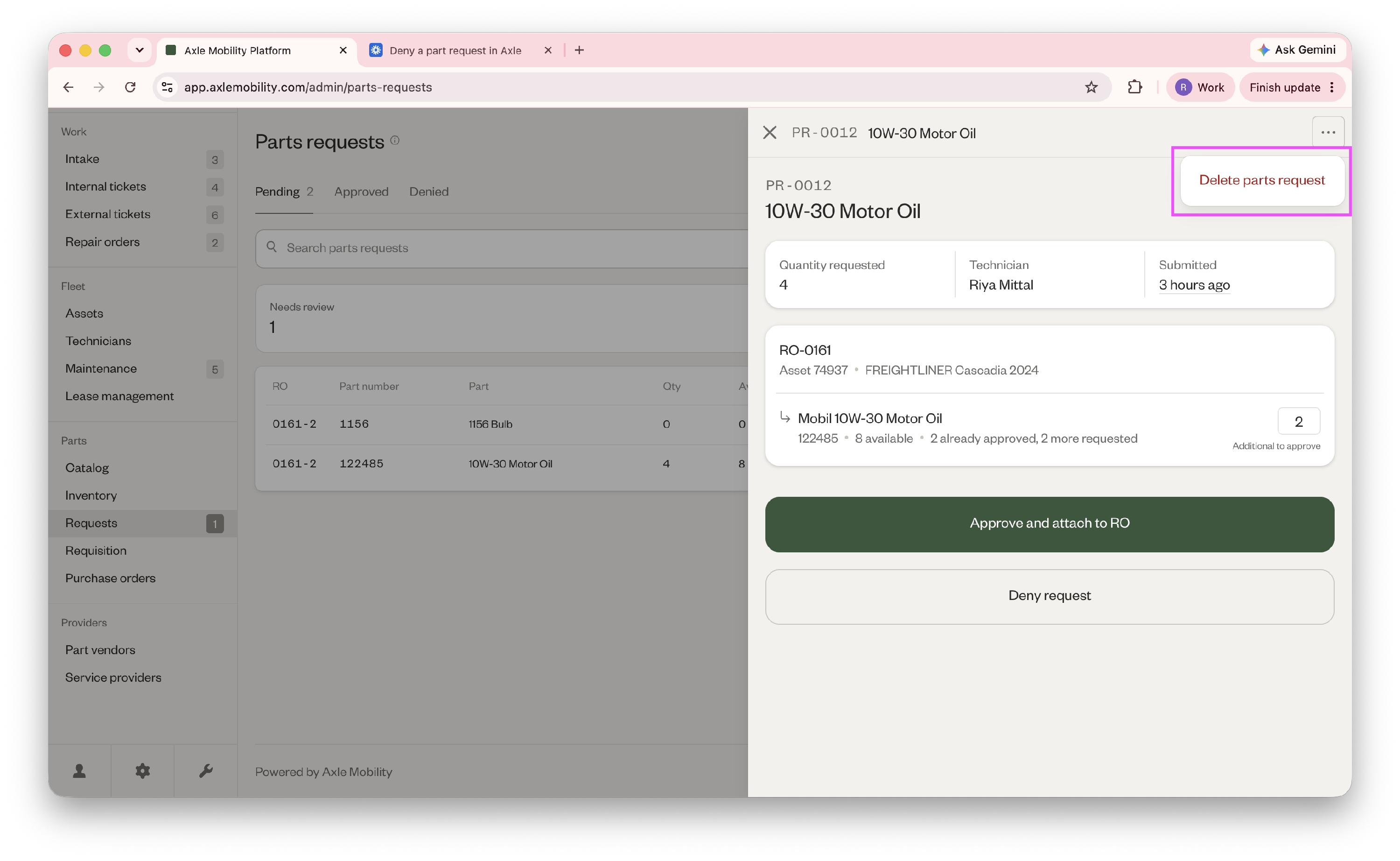
- Go to Parts > Parts requests > Pending tab.
- Find the request you want to review.
- Select the request to open its details.
Requests are reviewed one at a time.
Approve a pending request
If the part is in stock, select Approve and attach to RO. This pulls the part from inventory and adds it to the repair order.
You can also adjust the approved quantity if you want to approve fewer parts than requested. If you only approve part of the request, the request stays Pending until the full quantity has been approved.
Order a part
If the part is not in stock, select Mark as ordered. The request moves to the Ordered tab while you get the part.
If the technician entered the part as free text, assign it to a catalog part before marking it ordered.
Approve an ordered part
When the ordered part arrives:
- Open the request.
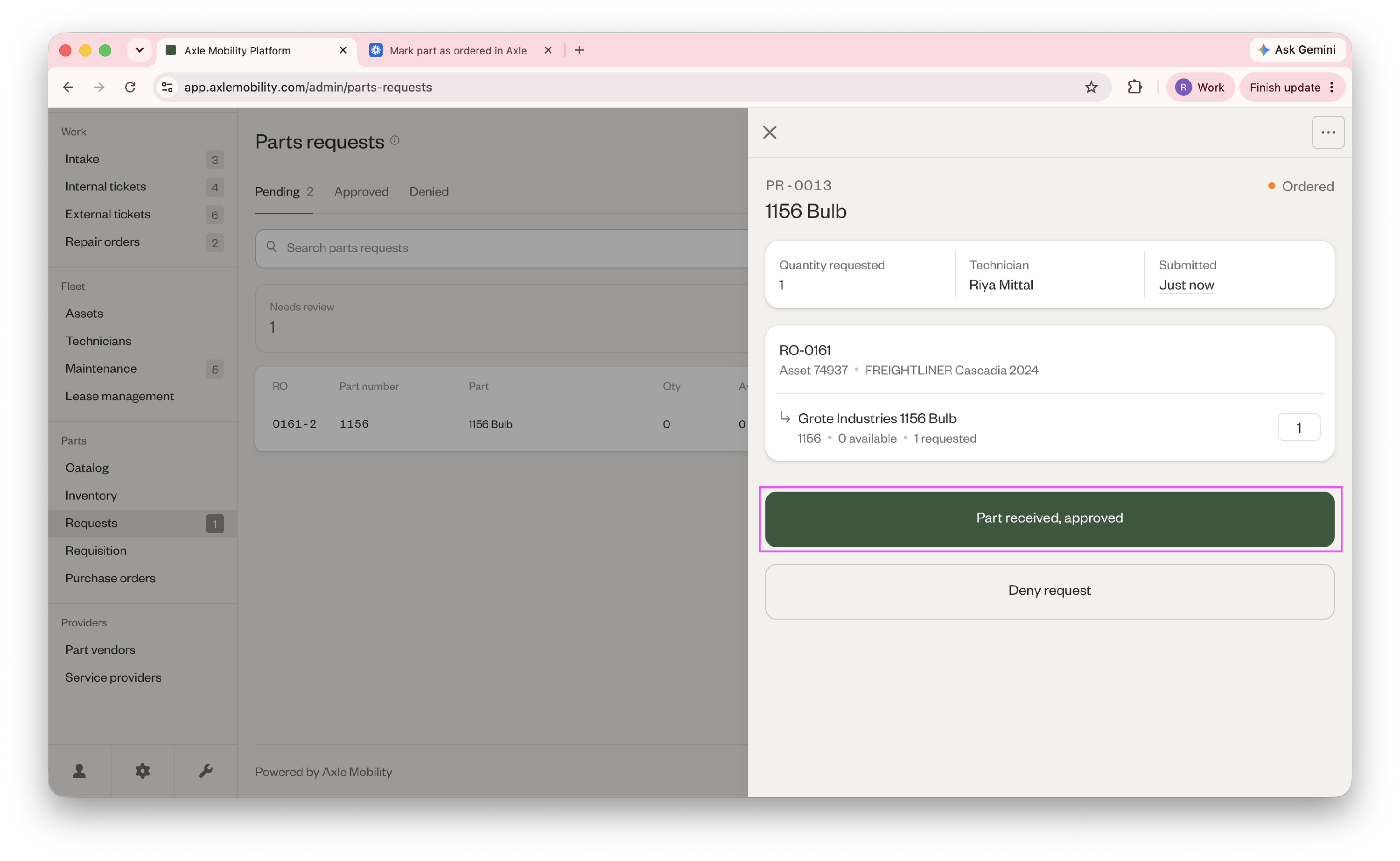
- Select Part received, approved.
This approves the request and attaches the part to the repair order.
Deny a request
Select Deny request, then enter a reason. The reason is shared with the technician so they understand why the request was denied.
Delete a request
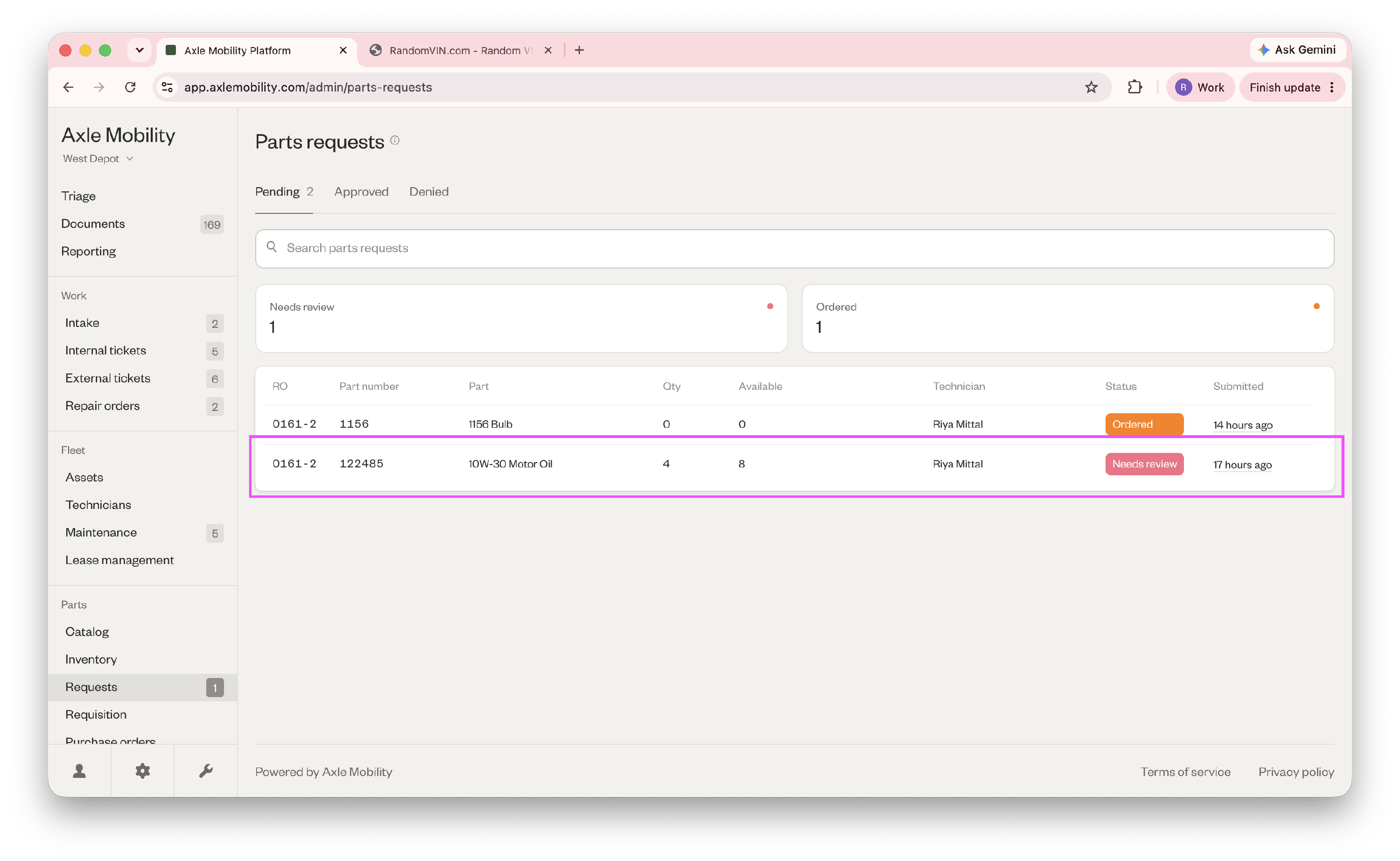
If you have permission, you can delete a request from the details drawer. You’ll be asked to confirm before it’s deleted.